The best moments in your videos deserve to be photos. Whether it's a travel highlight, a sports play, or a lecture slide — you shouldn't need to install software just to grab a still frame. Screenshots are low-resolution, and traditional tools like VLC or FFmpeg require installation and manual work.
This guide shows you how to extract high-quality photos from any video in 3 simple steps, entirely in your browser.
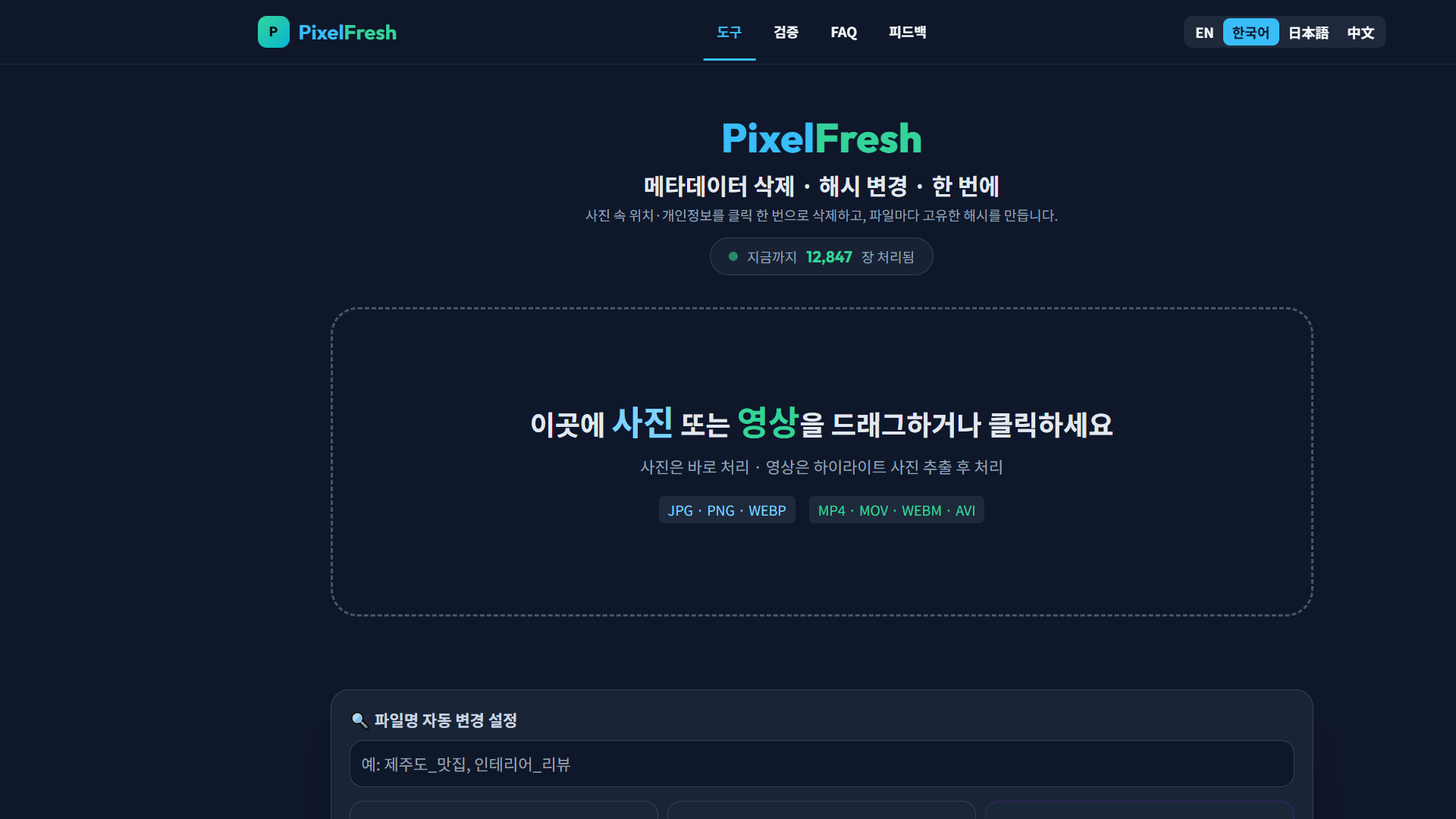
1 Upload Your Video
Go to pixelfresh.app and drag your video file into the upload area. You can also click to browse your files.

Supported video formats:
Any format your browser can play is supported. No file size limits.
2 AI Detects Key Scenes
Once your video loads, PixelFresh's AI engine analyzes it frame by frame. It automatically identifies moments where the scene changes — a new camera angle, a different slide, a cut to a new location.
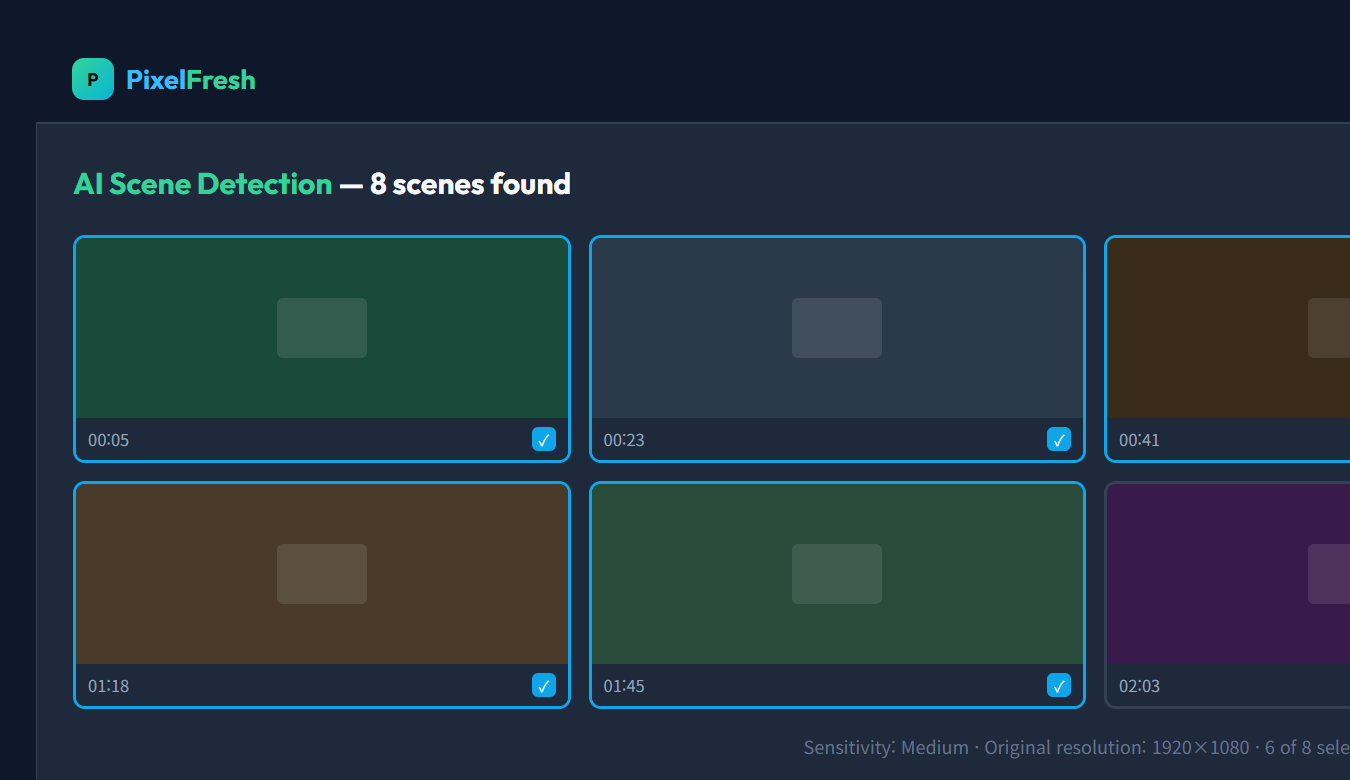
How scene detection works:
- The video is sampled at regular intervals (downscaled to 160×90 for speed)
- Pixel differences between consecutive frames are calculated
- When the difference exceeds a threshold, it's marked as a scene change
- At each detected point, the frame is captured at original resolution (1080p/4K)
Adjusting sensitivity
Use the sensitivity slider to control how many scenes are detected. Lower sensitivity captures only major scene changes (fewer photos). Higher sensitivity captures more subtle changes (more photos). Start with "Medium" and adjust based on your results.
Try It Now — Free
Upload a video and see AI scene detection in action. No sign-up, no installation, no server uploads.
Open PixelFreshWorks on desktop and mobile · 100% free
3 Select and Download HD Photos
After detection completes, you'll see thumbnail previews of every detected scene. Click to select or deselect individual frames, or use "Select All" to grab everything.
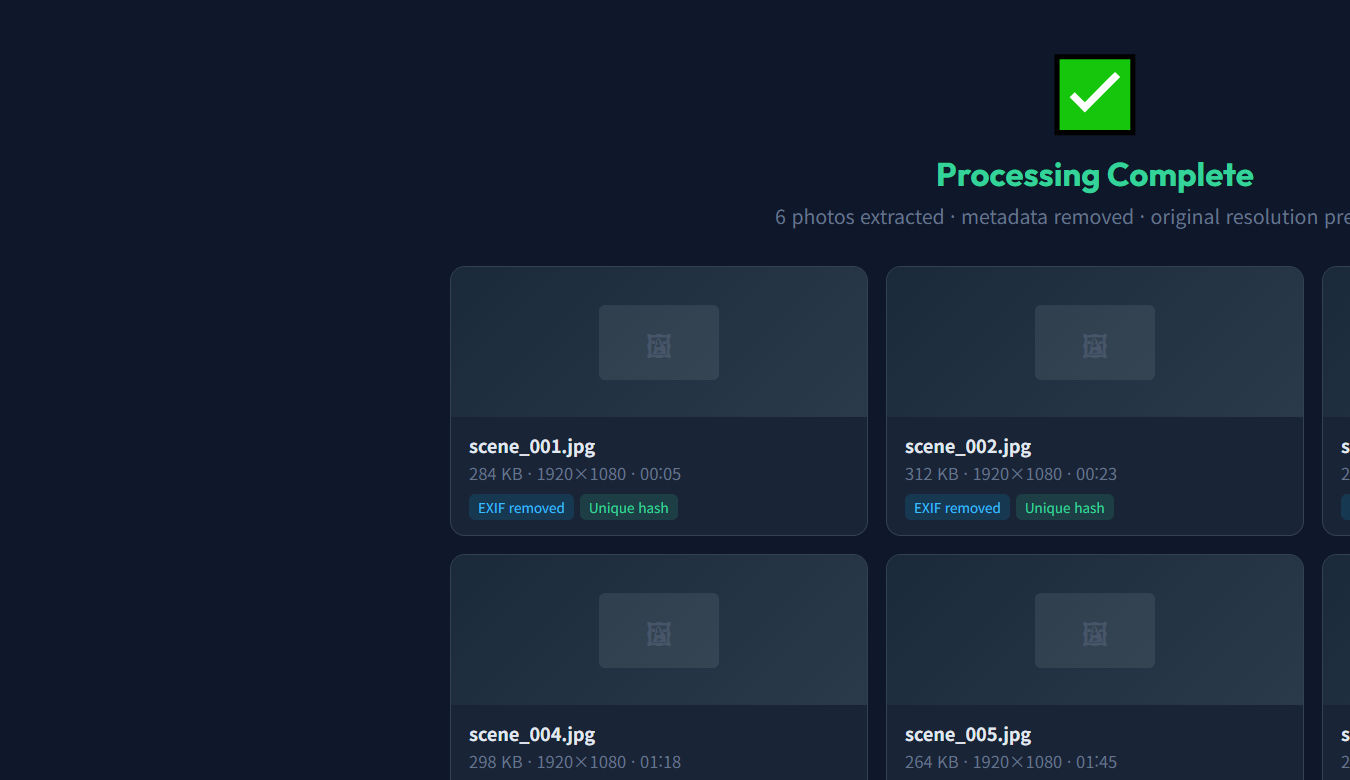
What you get:
Advanced Features
Manual Frame Capture
Don't want automatic detection? You can also manually seek to any point in the video and capture that exact frame. Use the timeline scrubber to find your moment, then click the capture button.
Batch Processing with Image Pipeline
Extracted photos automatically go through PixelFresh's image pipeline. This means you can simultaneously remove metadata, change image hashes, and even generate unique variations — all in one step.
Privacy by Design
Your video never leaves your device. PixelFresh processes everything using the browser's built-in Canvas API and Video API. Zero bytes are sent to any server. This is fundamentally different from cloud-based tools that upload your files.
The Best Moments Deserve to Be Photos
AI scene detection · Original resolution · Metadata stripped · Zero server uploads
Extract Photos Now — FreeFrequently Asked Questions
Does extracting photos from video reduce quality?
No. When you extract frames at original resolution, there is zero quality loss. A 1080p video yields 1920×1080 photos, and a 4K video yields 3840×2160 photos. This is always better quality than taking a screenshot of the video player.
What video formats are supported?
PixelFresh supports MP4, WebM, MOV, AVI, and any other format your browser can play. Extracted photos are saved as JPEG at 92% quality with all metadata automatically removed.
Can it automatically detect scene changes?
Yes. PixelFresh uses AI-powered scene detection to analyze your video and automatically identify key moments where the scene changes. You can adjust the sensitivity to capture more or fewer scenes.
Is my video uploaded to a server?
No. All processing happens entirely in your browser. Your video never leaves your device — zero data is sent to any server. This makes it the most privacy-friendly option available.
Can I extract photos from very long videos?
Yes. PixelFresh can handle videos of any length, though very long videos (30+ minutes) may take more time for scene analysis. The extraction itself is fast regardless of video length.